I was working on a project that allows encrypting files on remote file share, which was not enabled by default. I've to setup the pre-requite infrastructure, including fully functional Active Directory, Public Key Infrastructure, roaming user profiles (RUP) and the file shares. Group policies would have to be configured to make everything happens. In addition, users from trusted forest must also be allowed to login to the resource forest, and be enrolled with EFS certificate to perform the same remote file encryption. I find there is a lack of clear and cohesive documentation regarding cross-forest support for remote EFS on Microsoft Technet. Here, I would attempt to document down what I did to make cross-forest for remote EFS operations work. Meanwhile, I would also thank the excellent Microsoft premium support team for providing me the necessary insights over multiple email to get it up and running.
Let's get started. First thing first, before performing cross-forest operations, you have to ensure same forest EFS operations work.
Understanding Remote EFS
Local EFS is pretty straightforward: encrypting file on local file-systems. Remote EFS comes in 2 versions: (1) remote encryption/decryption with SMB file share and (2) remote encryption/decryption with WebDAV (a.k.a Web folders).
For (1) SMB mode, roaming user profiles for EFS certificate must be enabled, so that the file share server may impersonate the users and load the EFS keys from roaming user profiles to perform encryption/decryption on users' behalf. To enable impersonation, the file server must be trusted for delegation. As the file is decrypted when it leaves the server, the data across the network is left in plain-text. Hence, you'll have to deploy additional IPSec or SSL to protect the transport path.
As for (2) WebDAV mode, the file is automatically copied from the Web folder to the user’s computer, encrypted on the user’s computer, and then returned to the Web folder over HTTPS. The advantage is that the computer hosting the Web folder does not need to be trusted for delegation and does not require roaming or remote user profiles. However, it comes with a serious limitation. I've tested it to be rather "slow" in access performance and Microsoft recommends that the file size should be kept below 60MB.
Phase 1: Remote EFS on SMB file share within Forest
- Provision network share and enable roaming user profiles for users. See "Deploy Roaming User Profiles"
- Setup Active Directory Certificate Services and configure EFS certificate auto-enrollment for users. See "AD CS and PKI Step-by-Steps, Labs, Walkthroughs, HowTo, and Examples"
- Login with a test user account on a client machine. Verify that an EFS certificate has been auto-enrolled using "certmgr.msc". Logout the user, so that the roaming cert can be synced to the RUP.
- Login again with the same user account. Verify that the EFS cert has been synced to the RUP folders. See this roaming cert troubleshooting guide
- Setup a file server and provision a network share for remote EFS. Delegate the file server to be trusted. See "Remote Storage of Encrypted Files Using SMB File Shares and WebDAV"
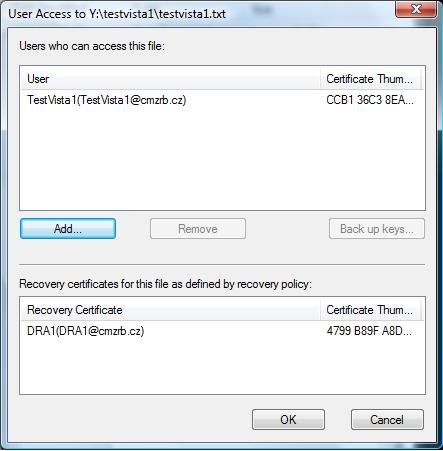
- Map the network drive on the client machine. Try to create some files and encrypt them. Verify that the files are encrypted with the same certs on your profiles. Otherwise, the file server might be requesting a new EFS cert on your behalf instead of loading it from RUP. If the files fail to encrypt, it could due to different roaming profile folder structures created by different Windows client version. See this troubleshooting guide.
Phase 2: Supporting cross-forest users for certificate auto-enrollment and remote EFS
- Setup two-way forest trust. In this context, this forest (hosting resources, such as file servers etc) is known as "resource forest". The forest where users come from is known as "account forest". Create new security group with "Domain Local" scope and add cross-forest users to this group.
- Allow "Read" and "Auto-enrollment" for the cross-forest group to the EFS user template
- Configure Cross forest certificate enrollment. Run the "PKIsync.ps1" script to sync PKI objects, which is critical to facilitate cross-forest enrollment. Run the command on the account forest with "Enterprise Admin" rights specifying the source and target forests.
- The Technet link for cross-forest enrollment above missed out the step of copying the pkiEnrollmentService object over (i.e. certutil -config can't be used). Use this command instead:
- PKISync.ps1 -sourceforest source.local -targetforest target.local -type CA -cn "CA-Name"
- To verify the cert templates have been copied over, use the "AD Sites and Services" on the target DC, click "View" and tick "Show Service Node". Look under the folder "Services\Public Key Services\Certificate Template" to check the templates.
- Add the Issuing CA server to the "Cert Publishers" Domain Local group on the account forest.
- Enable LDAP referral support on enterprise CAs: certutil -setreg Policy\EditFlags +EDITF_ENABLELDAPREFERRALS
- Deploy group policy to enable "Allow Cross-Forest User Policy and Roaming User Profiles" and set "roaming profile path for all users logging onto this computer" on the client machines for cross-forest users, as well as the file servers as shown below:

- User group policy would not take effect for cross-forest user logon to domain computer. To configure user policy, configure loopback policy to facilitate auto-enrollment on client computers logon by cross-forest users Even if you don't enable it explicitly, loopback with replace mode would still be enabled for cross-forest user login by default. Enable Auto-enrollment on user configuration. Leave the "Certificate Enrollment Policy" as "Not configured".
- Test domain logon using a cross-forest user account. Perform the same verification procedures as earlier mentioned for single forest operations.
- If remote EFS operations fail, despite auto-enrollment works and the RUP certs are synced, it might be due to the group policy fail to take effect on the file server. The server attempts to impersonate a cross-forest user but is disallowed by default as shown on event viewer below. Furthermore, the server is not aware of the location of RUP folders for cross-forest users.
- Apply gpupdate and gpresult /h gpresult.html on the file server. Ensure "Allow Cross-Forest User Policy and Roaming User Profiles" and "roaming profile path for all users logging onto this computer" are applied
- Cross-forest users should be able to perform remote EFS operations on this resource forest.