You may have attempted to follow this Technet guide to test out Remote EFS on WebDAV folder. And it turned out that the encrypted file is either corrupted or not encrypted at all!
In order for EFS to work on WebDAV, you'll need to enable Custom Properties on IIS7. Follow this guide and it works like a charm!
If you're implementing Credential Roaming for EFS certificates, do take care of sufficient storage on Domain Controllers. Roaming certificates and keys are stored on DCs and would be replicated. Refer to this Technet link for considerations.
Showing posts with label microsoft file system. Show all posts
Showing posts with label microsoft file system. Show all posts
Monday, July 23, 2012

Wednesday, July 18, 2012
How to share EFS encrypted file
It's pretty straightforward to encrypt a file on local drives. All you need to do is to right-click on the "Properties" -> "General" -> "Advanced" and check on "Encrypt contents to secure data". This is provided that you have enrolled with a EFS certificate in your user certificate store. Credential roaming works great if you are going to login to multiple machines.
To share the encrypted file with other users, you've to add their EFS certs to the file before they can access it. On the file that you intend to share, right-click on "Properties" -> "General" -> "Advanced" -> "Detail" -> "Add".
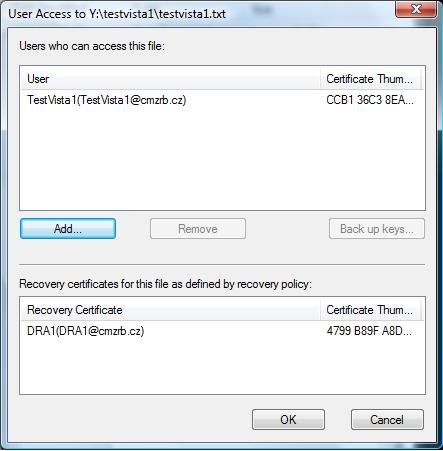
Click on "Find User".

Sunday, June 3, 2012
BIOS upgrade using bootable USB to DOS
Recently, I bought a new Acer Aspire 5560G notebook. It came with Win7 home premium. I wanted to start installing the new MS SQL 2012 on some Virtual Machine. Since VMWare is no longer giving away free VMWare workstation, the natural choice is for me to install Windows Server 2008 R2 on it that comes with free Hyper-V.
Upon successful installation of the new OS, I noticed that rebooting and shutting down of this new notebook is not seamless. I've to press down the power button in order for it to shutdown completely. I thought it's the BIOS error and downloaded the latest BIOS update. Only then, I realised that the update can only be run on DOS mode. Hey, it's not Win98 and the newer MS OSes no longer come with DOS! (MS now has something called WinPE but it's still not DOS)
After searching the Internet high and low, I came across this good article that shared how to boot the machine into DOS using USB stick. It requires a free simple HP utility called "HP USB Disk Storage Format Tool". After formatting the USB stick with MS DOS system files, I copied the BIOS update DOS utilities.
Rebooting the notebook using the USB stick, I've finally managed to upgrade the BIOS firmware. It's still couldn't solve the shutting down problem but at least I know of this easy-to-use method to boot any machine into DOS mode quickly.
Saturday, December 11, 2010
Access-based Enumeration
How do you stop users from listing files on the network folders that they have no access rights? You have created network shared folders with the default rights of read access for "Everyone". Individual users could "see" the file & folder listing of their co-workers, even though they may not read the file contents.
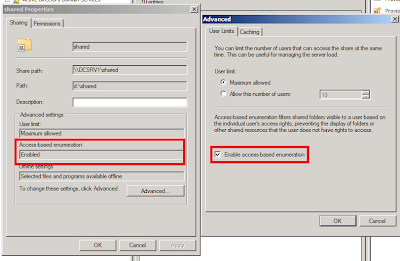
Microsoft has this Access-based enumeration (ABE) feature that displays only the files and folders that a user has permissions to access. If a user does not have Read (or equivalent) permissions for a folder, Windows hides the folder from the user’s view.
Access-based enumeration can be manually enabled or disabled on individual shared folders and volumes by using Share and Storage Management. This snap-in is available after a folder or volume has been shared. You can access Share and Storage Management in the File Services server role in Server Manager, and in Administrative Tools. You can also install it manually in Server Manager by adding the File Server role service to File Services.
There are two ways to enable and disable access-based enumeration by using Share and Storage Management:
Access-based Enumeration Reference
Microsoft has this Access-based enumeration (ABE) feature that displays only the files and folders that a user has permissions to access. If a user does not have Read (or equivalent) permissions for a folder, Windows hides the folder from the user’s view.
Access-based enumeration can be manually enabled or disabled on individual shared folders and volumes by using Share and Storage Management. This snap-in is available after a folder or volume has been shared. You can access Share and Storage Management in the File Services server role in Server Manager, and in Administrative Tools. You can also install it manually in Server Manager by adding the File Server role service to File Services.
There are two ways to enable and disable access-based enumeration by using Share and Storage Management:
- Share a folder or volume by using the Provision a Shared Folder Wizard. If you select the SMB protocol on the Share Protocols page of the Provision a Shared Folder Wizard, the advanced settings options on the SMB Settings page includes the option to enable access-based enumeration on the shared folder or volume. (To see the advanced settings options, on the SMB Settings page of the wizard, click Advanced).
- Change the properties of an existing shared folder or volume. To change the properties of an existing shared folder or volume, on the Shares tab of Share and Storage Management, click the shared folder or volume, and then click Properties in the Action pane. The information under Advanced settings displays whether access-based enumeration is enabled. Click Advanced and then select or clear the Enable access-based enumeration check box.

Access-based Enumeration Reference
Subscribe to:
Posts (Atom)